

Shopify is growing fast among Nepali entrepreneurs and small businesses. But Shopify Payments - Stripe's built-in solution - doesn't support Nepal. So how do you accept Khalti and eSewa payments from your Shopify store?
PayBridgeNP's Shopify integration solves exactly this.
The Challenge with Shopify in Nepal
Shopify supports 100+ payment providers globally, but none of them process Nepali rupees natively with Khalti or eSewa. Until recently, Nepali merchants had to:
- Use cash on delivery (losing digital customers)
- Accept international cards (which most Nepali customers don't have)
- Build a completely custom solution outside Shopify
PayBridgeNP's Shopify app changes this.
What PayBridgeNP Adds to Your Shopify Store
- Khalti, eSewa, and ConnectIPS at checkout
- Automatic order fulfillment when payment completes
- Refund support from the Shopify admin
- SMS and email payment reminders for pending orders
- Draft order payment links (send a payment link directly to a customer)
- Full order reconciliation in the PayBridgeNP dashboard
Installation
From the Shopify App Store
- Go to the Shopify App Store and search for PayBridgeNP
- Click Add app
- Authorize the app on your store
- You'll be redirected to the PayBridgeNP onboarding flow
Connect Your PayBridgeNP Account
If you don't have a PayBridgeNP account yet, create one at dashboard.paybridgenp.com. Then:
- In the app setup, click Connect Existing Account or Create New Account
- Authorize the connection
- The app will import your payment providers (Khalti/eSewa) automatically
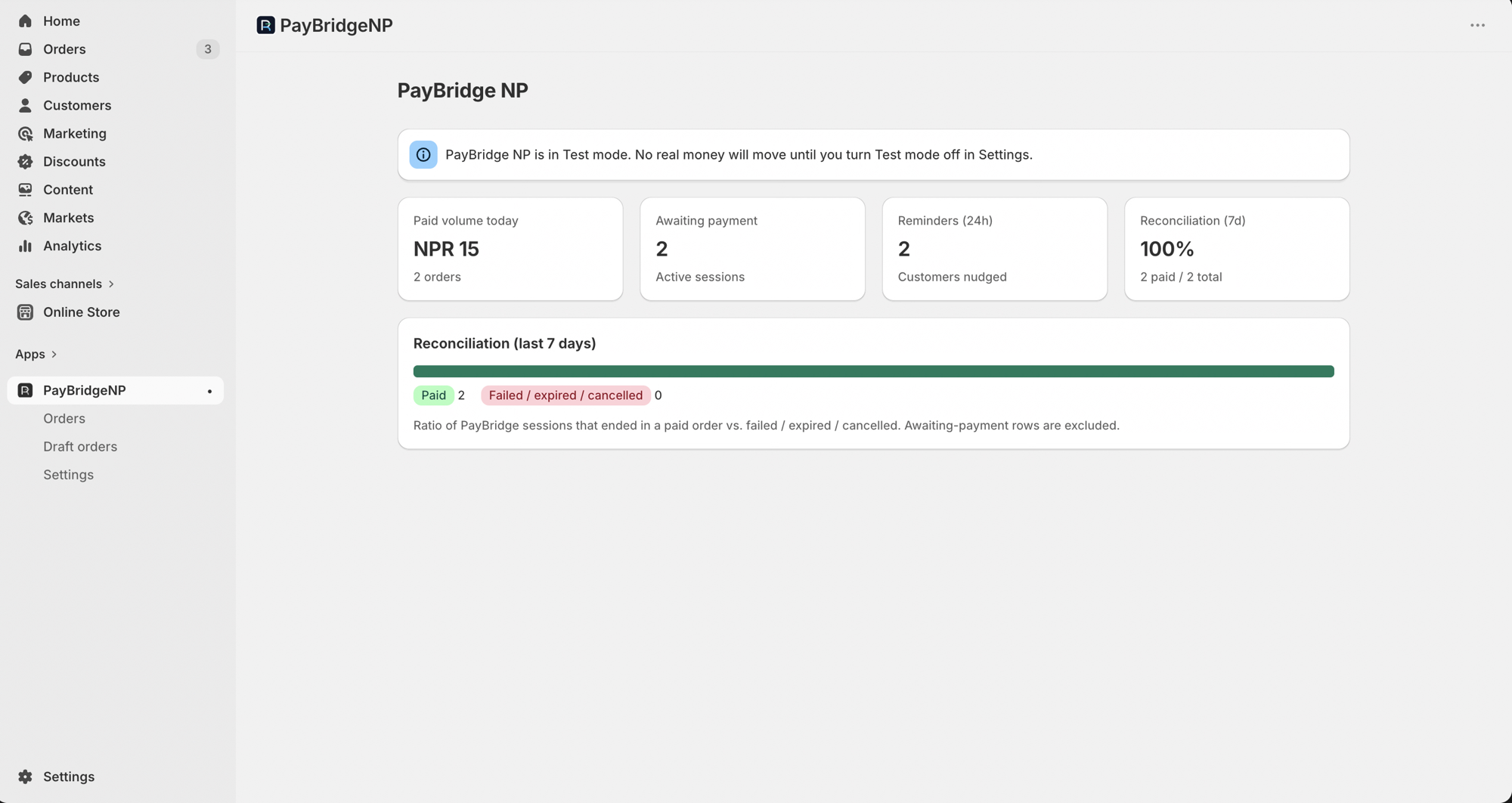
Once connected, the PayBridgeNP dashboard shows your Shopify store linked and ready:
Configuring Payment Settings
In your Shopify admin, go to Settings > Payments and you'll see PayBridgeNP listed under Alternative payment methods.
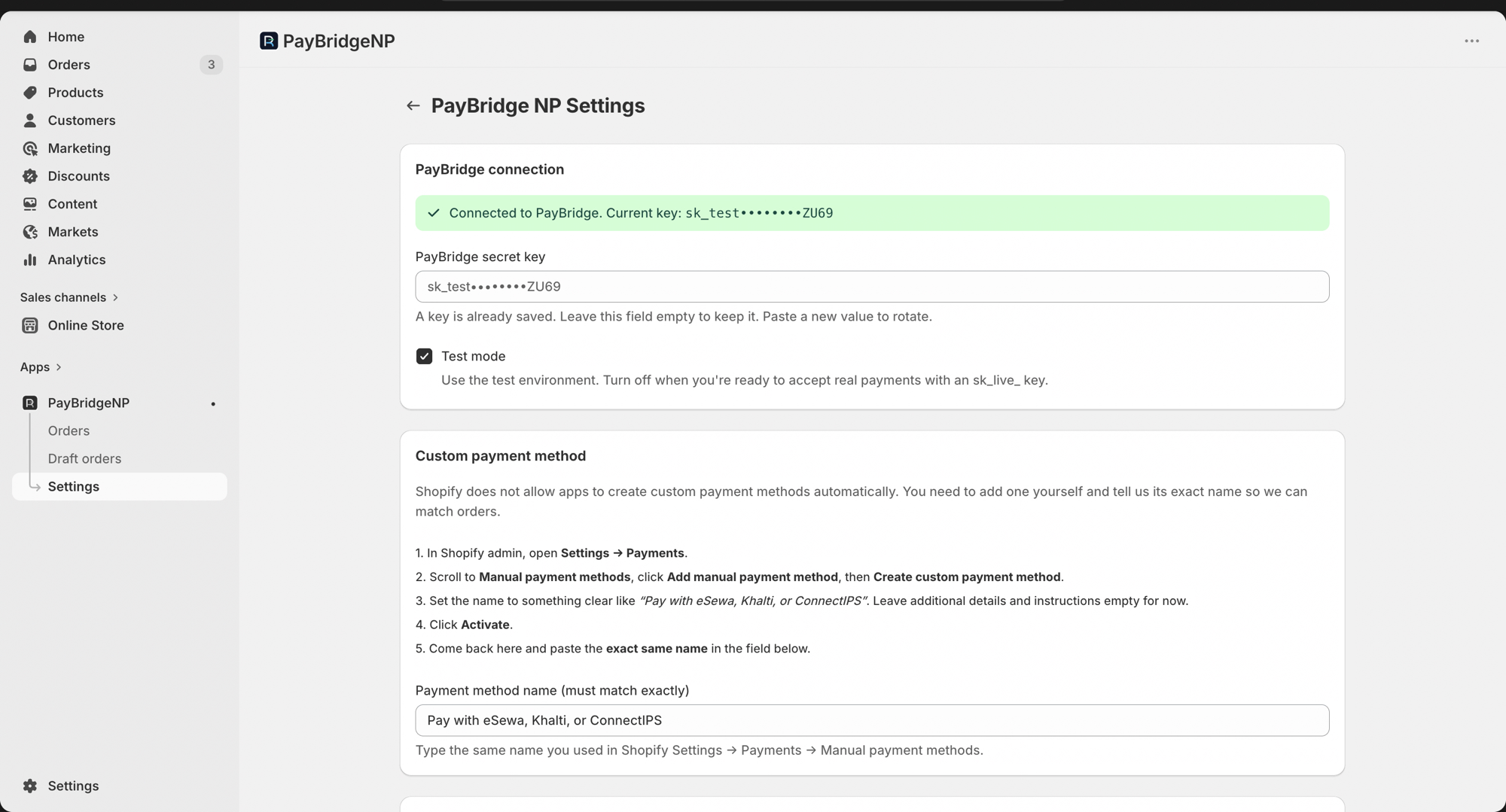
Provider selection: By default, customers can choose between all the providers you've added (Khalti, eSewa, ConnectIPS). You can configure checkout flows under Settings > Flows:
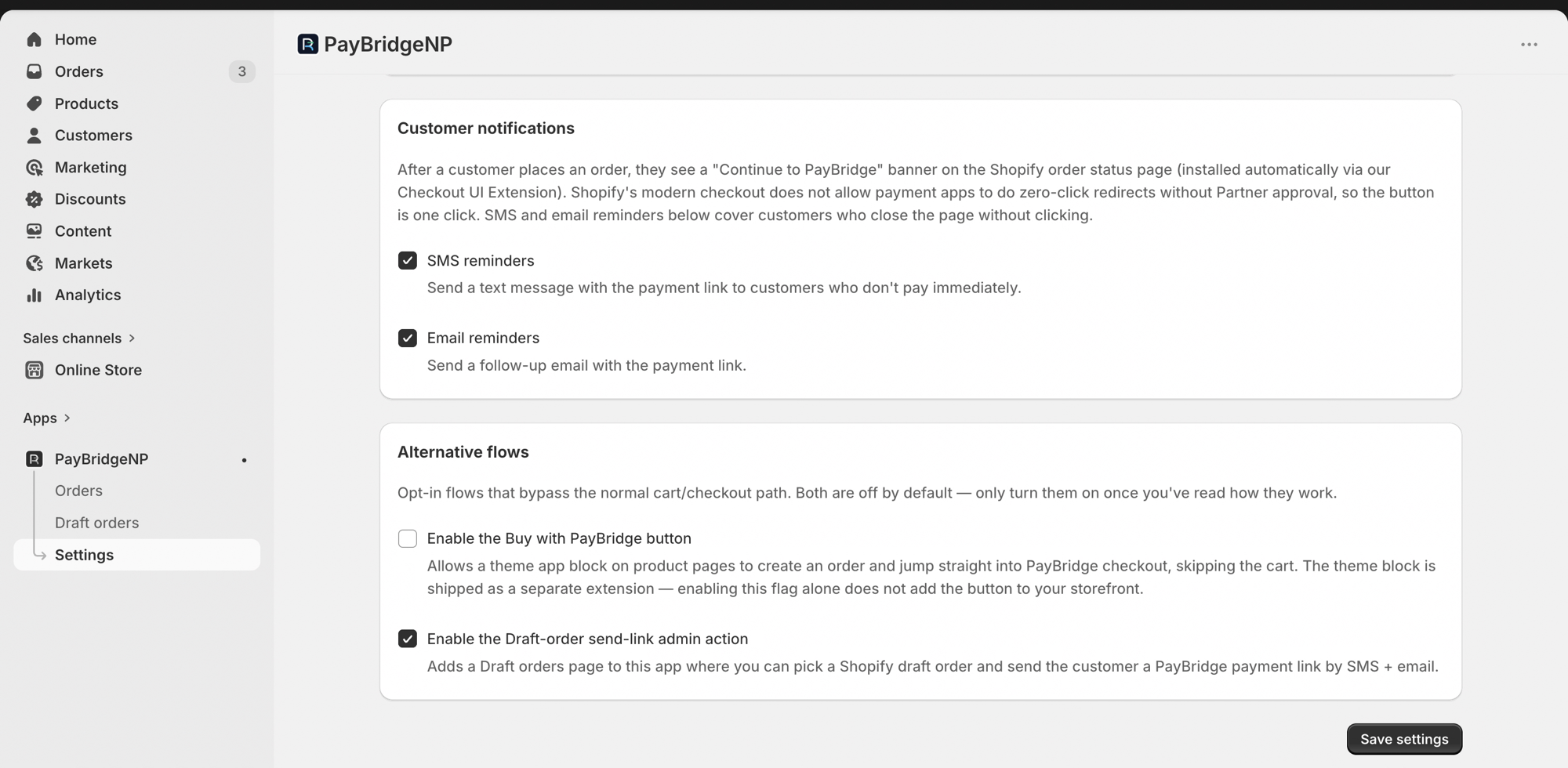
Currency: All transactions are in NPR. Shopify will show prices in whatever currency your store uses, but the PayBridgeNP checkout collects in NPR.
Order timeout: If a customer doesn't complete payment within 30 minutes, the order is automatically cancelled and inventory is released.
The Checkout Experience
When a customer clicks Complete Order on your Shopify store:
- Shopify creates a pending order
- The customer is redirected to PayBridgeNP's hosted checkout
- They select Khalti, eSewa, or ConnectIPS and complete payment
- They're redirected back to Shopify's order confirmation page
- The order status updates from Pending to Paid automatically
The entire flow takes under 60 seconds for a customer with their wallet open.
Payment Links for Draft Orders
One of the most useful features for Nepali Shopify merchants: payment links for draft orders.
Create a draft order in Shopify admin for a custom order, then click Send PayBridgeNP Link to generate and send a payment link via email or SMS. The customer pays, the order is fulfilled.
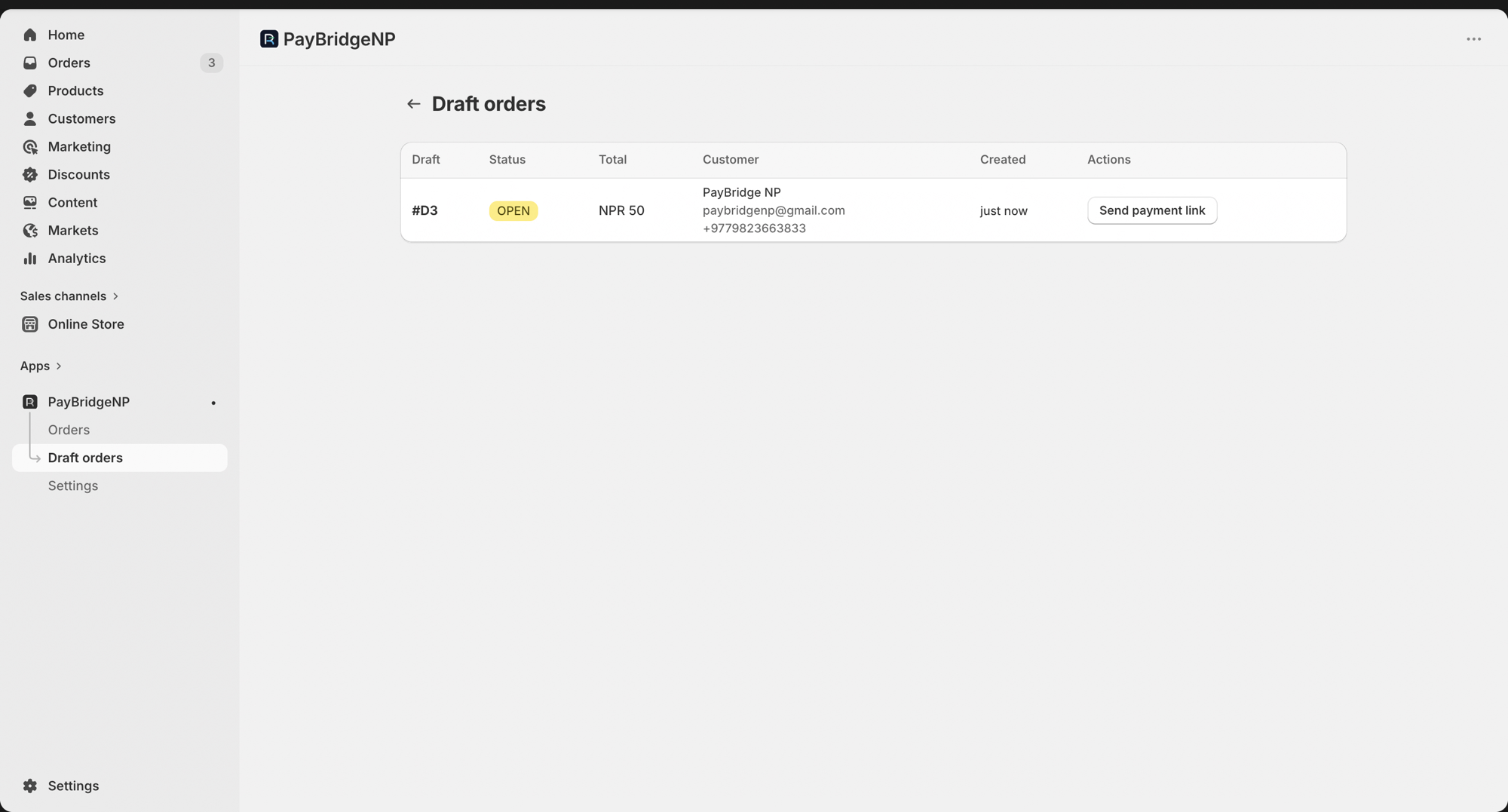
This is perfect for:
- Custom orders discussed on WhatsApp or phone
- Wholesale orders
- Partial payments / deposits
Reconciliation
The PayBridgeNP dashboard shows every transaction from your Shopify store in real time. Filter by date, status, provider, or order ID. Export to CSV for accounting.
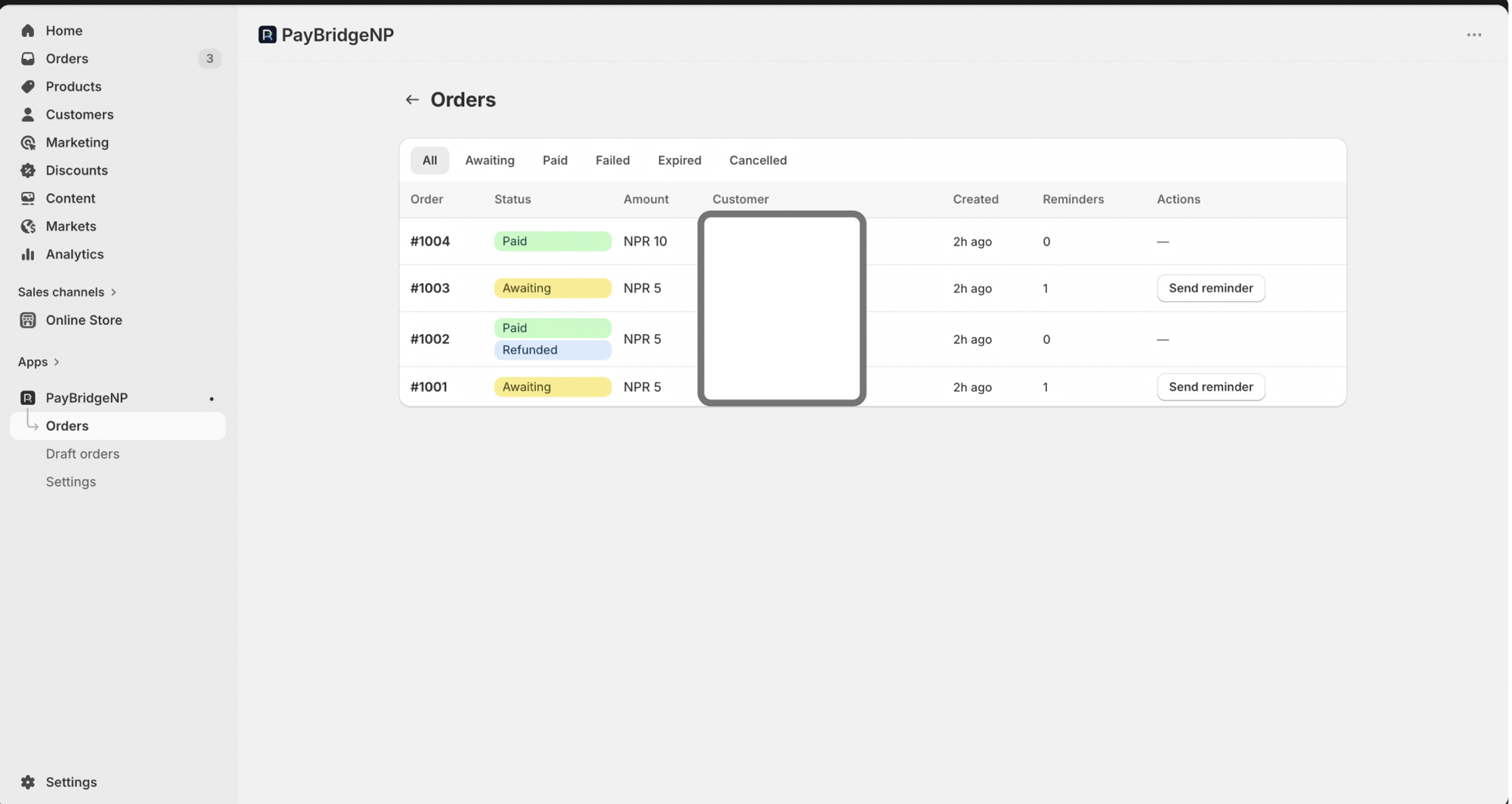
All Shopify orders are linked by order ID - click any transaction to see the full Shopify order details.
Refunds
To refund via Shopify:
- Open the order in Shopify admin
- Click Refund
- Enter the amount
- The refund is processed back to the customer's original payment method within 3-5 business days
See the refunds guide for more on how refunds work across Khalti, eSewa, and ConnectIPS.
Conclusion
PayBridgeNP is the only production-ready solution for accepting Khalti, eSewa, and ConnectIPS payments on Shopify. Visit the Shopify integration page for more details, or install the app and start selling to every Nepali customer today.